
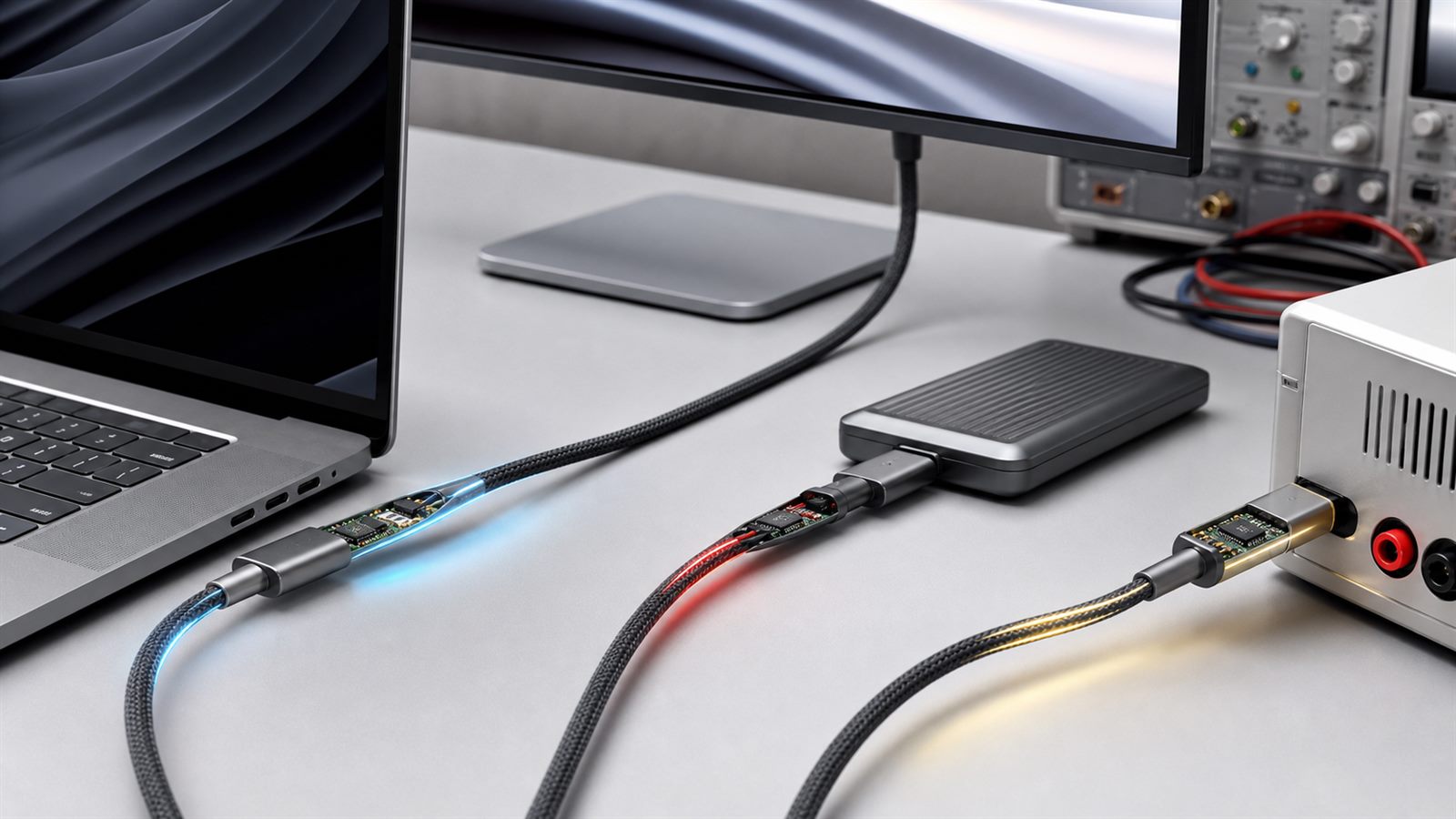
USB-C has become the familiar small, reversible connector on phones, laptops, monitors, chargers, and storage drives. That physical consistency is useful, but it creates a misleading expectation: if two plugs fit, people assume the connection will provide the same charging speed, data rate, and video support.
It may not. USB Type-C defines a connector system. The products attached to it can implement very different data protocols, power levels, and display capabilities. The USB Implementers Forum explicitly says that USB Type-C is not interchangeable with USB 3.2, USB4, or USB Power Delivery. Understanding that distinction prevents expensive cable purchases and explains many apparently broken docks.
The shape does not identify the protocol
A basic USB-C cable can carry USB 2.0 data at up to 480 megabits per second while using the same connector shape as a cable built for far higher USB4 speeds. A port may support charging but no display output. Another may carry data, power, and video simultaneously. The connector tells you that the plug is reversible and physically compatible; it does not promise every optional capability.
The result is a compatibility chain. The host port, peripheral, cable, charger, and software must share the required feature. A 40-gigabit drive attached through a USB 2.0 cable will operate at the slower common capability. A monitor cannot receive video if the laptop’s port does not provide an appropriate display path, even when the cable can carry one.
Data speed depends on both ends and the cable
USB generations and marketing names have changed over time, so the most useful label is the actual certified data rate: 5Gbps, 10Gbps, 20Gbps, 40Gbps, or 80Gbps where supported. USB4 can dynamically share a high-speed link among data and display traffic and supports operation up to 80Gbps over a certified 80Gbps cable. That maximum is not available from every USB-C port.
File transfers also remain below the signaling rate because of protocol overhead and the storage device’s own limits. A fast cable cannot make a slow flash drive faster. For external solid-state drives, buyers should match the drive, computer port, and cable, then judge real transfer tests rather than connector shape.
Charging wattage is negotiated
USB Power Delivery is a separate protocol that lets a source and device negotiate supported voltage and current. Current USB PD implementations can reach up to 240 watts in the Extended Power Range, but every charger, cable, and device in the path must support the requested level. The device will normally draw only the power it negotiates rather than being forced to accept a charger’s maximum rating.
A high-wattage charger therefore does not guarantee high-wattage charging. A laptop may cap input below the charger’s rating, a dock may reserve some power for itself, or a cable may support only a lower level. USB-IF recommends certified cable power labels showing 60W or 240W, which is more useful than an unlabeled connector.
Some high-power and high-speed cables need electronics
Full-featured cables can contain an electronic marker that reports cable capabilities during connection. Active cables may also use signal-conditioning electronics to maintain high data rates over a longer distance. These components add cost, and they explain why two similar-looking cables can behave differently.
The presence of an electronic marker does not itself mean that every feature is supported. It records relevant cable information; the host and device still determine the final connection. Certification and capability logos are better evidence than a vague phrase such as “fast cable.”
Video is an additional capability
A USB-C connector can carry display traffic through USB4 or an alternate mode when the hardware supports it. The laptop must be able to output video through that port, the cable must carry the required lanes, and a dock or monitor must accept the format. Resolution, refresh rate, high-dynamic-range data, and simultaneous USB traffic all consume link capacity.
This is why a cable that charges a laptop may show a blank monitor, or a dock may reduce display capability while a fast storage device is active. USB4’s ability to allocate bandwidth among data and display flows improves flexibility, but it cannot exceed the capabilities of the weakest part of the connection.
The EU common-charger rule does not make every cable identical
European rules have expanded the use of USB-C charging interfaces across product categories, including laptops under the applicable schedule. The policy reduces connector fragmentation and supports charger reuse, but it does not erase all differences in power needs or data features. Our guide to the EU common-charger requirements for laptops explains the distinction.
Consumers can benefit from a common physical interface while still needing a cable suited to a particular job. Charging a phone overnight, running a high-resolution monitor, and copying large video files are different workloads.
How to choose the right cable
Start with the task, then work backward. For charging, check the device’s accepted wattage, the charger’s USB PD output for the relevant port, and the cable’s certified power rating. For storage or a dock, check the required data rate. For a display, confirm video support on the computer port, dock, monitor, and cable.
Prefer short cables when practical for the highest data rates, and look for USB-IF certification marks with explicit speed and power values. Keep high-performance cables labeled at home or in the office. A cable tester can help professionals, but most buyers can avoid confusion by purchasing for a named capability rather than assuming every USB-C cable is universal.
Wireless charging has a similar gap between physical compatibility and verified performance. The role of certification is discussed in our article on Qi2 25W wireless charging. Connectivity labels also matter beyond cables, as shown by the rules behind outdoor 6GHz Wi-Fi.
Common troubleshooting sequence
When a USB-C setup fails, test one variable at a time. Connect the device directly instead of through a dock. Try the known cable supplied with the product. Confirm the port’s data, charging, and video specifications in the computer manual. Check whether a charger splits its power when several ports are occupied. Update dock firmware and operating-system software where the manufacturer provides updates.
This sequence often reveals that nothing is defective: the connection has negotiated the best capability shared by all components. Replacing only the limiting component is cheaper than replacing the entire setup.
Limitations
Labels are improving, but older products, captive cables, regional packaging, and non-certified accessories remain inconsistent. Vendor specifications may describe a port’s maximum without explaining reduced capability when multiple displays or peripherals are attached. Counterfeit certification marks are also possible, so reputable sellers and traceable product documentation matter.
What to watch next
Watch for wider use of simple certified speed and wattage logos, more 80Gbps USB4 products, and clearer operating-system reporting of negotiated link speed and charging power. Better visibility would let users diagnose a limitation without guessing which black cable is responsible.
USB-C succeeds as a common connector. Its next usability challenge is making the capabilities behind that connector just as easy to recognize.
Sources: USB-IF: USB Type-C Cable and Connector Specification; USB-IF product and packaging language guidelines; USB-IF: USB4; USB-IF: Cables and Connectors.
Leave a Reply